[Rigidbody]
유니티 물리엔진(PhysicX)을 활용.
오브젝트에 물리적인 특성(중력, 충돌, 힘, 속도, 마찰 등)을 부여하는 컴포넌트.
Translate는 물리엔진을 거치지 않기에 통과한다.
Rigidbody는 충돌을 거치기에, 캐릭터, 박스, 오브젝트 등에 활용한다.
Update() 메서드가 아닌, FixedUpdate()에서 처리한다.
[Rigidbody 이동]
특성을 고려해서 상황에 맞게 활용해야 한다.
1. transform.Translate
물리엔진 X
RigidBody가 있는 오브젝트에 지양. 물리엔진을 우회하기에 충돌이 부자연스럽다.
2. AddForce
RigidBody에 힘을 가하는 방식.
물리적 가속, 밀림, 점프, 폭발, 넉백 등에 활용한다(캐릭터 기본 이동처럼 정확한 조작이 필요한 경우에는 부자연스럽다.)
3. LinearVelocity
RigidBody에 속도를 직접 지정하는 방식.
Y축 속도를 잘못 덮어쓰면 중력, 점프 조작에 문제가 발생할 수 있다.
4. MovePosition
RigidBody의 다음 위치를 지정하는 방식.
물리엔진 흐름 안에서 위치를 이동하기 때문에 transform 직접 이동보다 안정적이다.
캐릭터/적 이동, 이동발판 등에 자주 활용한다.
캐릭터 기본 이동은 Velocity, MovePosition이 많이 사용된다.
AddForce는 점프, 폭발, 넉백 등 물리적 가속이 필요한 상황에 적합하다.
rb = GetComponent<Rigidbody>(); // rb = Rigidbody 컴포넌트를 담은 변수
moveDir //이동 방향
moveSpeed //이동 속도
//[1]AddForce
rb.AddForce(moveDir * moveSpeed);
//[2]Velocity
float currentYvelocity = rb.linearVelocity.y; //Y 속도 유지(오류 방지)
vector3 velocity = new Vector3(moveDir.x * moveSpeed, currentYvelocity, moveDir.z * moveSpeed);
rb.linearVelocity = velocity;
//[3]MovePosition
//rb.position: 현재 rigidbody 위치
//moveDir * moveSpeed : 이동 방향으로 이동 속도만큼 이동한다
Vector3 nextPos = rb.position + moveDir * moveSpeed * Time.fixedDeltaTime;
rb.MovePosition(nextPos);
[Rigidbody 설정]
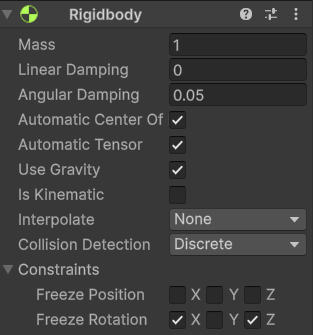
Mass : 질량. 값이 클 수록 무겁다(충돌 등에 영향)
Linear Damping : 이동 저항, 값이 클 수록 빨리 멈춘다(공기 저항)
Angular Damping : 회전 저항. 값이 클 수록 빨리 멈춘다
Automatic Center of Mass : 무게 중심 자동 계산
Automatic Tensor : 회전 관성 자동 계산
Use Gravity : 중력 적용 여부
Is Kinematic : 물리엔진의 힘, 중력, 충돌 영향 X(스크립트롤 위치 직접 제어)
ex)움직이는 발판, 자동문, 엘리베이터 등에 사용된다.
Interpolate : Rigidbody의 위치 보간 방법
Collision Detection : 충돌 감지 방법 아래로 내려갈 수록 무거워진다.
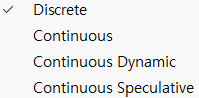
- Discrete : 기본. 가장 가볍고 보편적으로 사용된다.
- Continuous : 빠른 물체에 적합
- Continous Dynamic : 디테일한 충돌 감지
- Continous Speculative : 충돌 위치 예측 처리
Constraints : 체크한 축의 이동/회전 고정
using UnityEngine;

public class RigidBasic : MonoBehaviour
{
    private Rigidbody rb;
    private Vector3 moveDir;

    private float moveSpeed = 5.0f;
    void Start()
    {
        //RigidBody 컴포넌트를 변수 rb에 저장
        rb = GetComponent<Rigidbody>();
    }

    void Update()
    {
        //[Translate 방식]
        //벽과 충돌 시 부들거린다. 물리엔진 입장에서 '터널링'이 발생할 수 있다.
        if (Input.GetKey(KeyCode.W))
        {
            transform.Translate(Vector3.forward * moveSpeed * Time.deltaTime);
        }
        if(Input.GetKey(KeyCode.S))
        {
            transform.Translate(Vector3.back * moveSpeed * Time.deltaTime);
        }

        //이동 변수: moveDir
        float horizontal = Input.GetAxisRaw("Horizontal");
        float vertical = Input.GetAxisRaw("Vertical");
        moveDir = new Vector3(horizontal, 0.0f, vertical).normalized;
    }

    //물리엔진 관련 업데이트는 FiedUpdate에서 처리
    private void FixedUpdate()
    {
        //[1]AddForce
        //힘을 누적해서 이동(점진적 가/감속 물리반영)
        //마찰력, 중력, 가감속 영향으로 회전 발생(당구겜 등에서 사용)
        //Rigidbody의 Constraints, FreezeRotation을 체크하면 회전이 발생하지 않는다.
        rb.AddForce(moveDir * 20.0f);

        //[2]Velocity
        //힘을 가하는 게 아닌, 속도 자체를 덮어쓰는 방식
        //물리기반 + 속도를 직접 덮어쓰는 방식
        //입력이 즉각적. Y속도를 잘못 덮어씌우면 이상해질 수 있다.(Y는 유지, X,Z만 제한)
        float currentYvelocity = rb.linearVelocity.y; //현재 Y속도 저장
        //좌우, 앞뒤(Y는 유지)
        Vector3 velocity = new Vector3(moveDir.x * moveSpeed, currentYvelocity, moveDir.z * moveSpeed);
        rb.linearVelocity = velocity;

        //[3]MovePosition
        //rb.position: 현재 rigidbody 위치
        //moveDir: 이동 방향
        //moveSpeed: 이동 속도
        //moveDir * moveSpeed: 어느 방향으로 얼마나 빠르게 이동할지
        //moveSpeed * Time.fixedDeltaTime: 이번 물리 프레임 동안 이동해야 하는 거리
        //rb.position + 이동거리: 현재 위치 + 이번 프레임 이동량
        //제어 깔끔. 일정한 속도 이동에 적합
        Vector3 nextPos = rb.position + moveDir * moveSpeed * Time.fixedDeltaTime;
        rb.MovePosition(nextPos);
    }
}
[Collider]
오브젝트 충돌 영역 정의 컴포넌트.
FPS같이 판정이 중요한 류가 아니라면, 성능을 위해 단순화 된 형태(박스, 스피어, 캡슐 등)를 사용한다.
형태, 영역을 정하면 실제 물리 계산은 RigidBody의 Collision Detection이 담당한다.
[Collision 계열 메서드]
실제 물리충돌 발생 시 호출, 물리엔진 충돌 계산 수행.
두 콜라이더의 is Trigger가 모두 false여야 한다.
ex) 캐릭터가 벽에 부딪혀 밀릴 때, 물체를 밀거나 물리적 상호작용을 할 때, 투사체가 적이나 벽에 맞아서 파괴될 때
OnCollisionEnter : 처음 충돌 발생 시 호출
OnCollisionExit : 충돌 종료 시 호출
OnCollisionStay : 충돌이 유지되는 동안 매 프레임 호출
private void OnCollisionXXX(Collision collision)
{
//내용
}
Collision 안에는 충돌 정보가 들었다.
상대 오브젝트에 접근을 할 땐 gameObject를 한단계 타고 들어가야 한다.
if(collision.gameObject.CompareTag("태그명"))
{
//내용
}
[Trigger 계열 메서드]
트리거 영역 처음 진입 시 호출, 물리적 충돌이 아닌 겹침(오버랩) 감지.
is Trigger가 true여야 한다.
ex) 아이템 획득, NPC 대화, 텔레포트, 포탈, 체크포인트
OnTriggerEnter : 트리거 영역 처음 진입 시 호출
OnTriggerExit : 트리거 영역에서 벗어날 시 호출
OnTriggerStay : 트리거 영역에 머무를 때 매 프레임 호출
private void OnTriggerStay(Collider other)
{
//내용
}
Trigger 안에는 충돌 정보가 없다. Collider로 바로 접근할 수 있다.
if(other.CompareTag("태그명"))
{
//내용
}

[공통 사항]
A, B 두 오브젝트 모두 콜라이더가 있어야 하며, 최소 하나의 오브젝트에는 Rigidbody가 있어야 한다.
using UnityEngine;

public class ColliderBasic : MonoBehaviour
{
    private Rigidbody rb;
    private Vector3 moveDir;

    private float moveSpeed = 5.0f;
    private float horizontal;
    private float vertical;
    void Start()
    {
    	//Rigidbody 컴포넌트 가져오기
        rb = GetComponent<Rigidbody>();
    }

    void Update()
    {
    	//조작키 지정
        horizontal = Input.GetAxisRaw("Horizontal");
        vertical = Input.GetAxisRaw("Vertical");
        moveDir = new Vector3(horizontal, 0.0f, vertical).normalized;
    }
    private void FixedUpdate()
    {
    	//MovePosition 방식
        Vector3 nextPos = rb.position + moveDir * moveSpeed * Time.fixedDeltaTime;
        rb.MovePosition(nextPos);
    }
    //[Collision]
    private void OnCollisionEnter(Collision collision) //충돌
    {
        //Debug.Log("충돌이 처음 발생되었을 때 호출");
        if(collision.gameObject.CompareTag("Wall"))//충돌 오브젝트 태그가 Wall일 시
        {
            Debug.Log("벽과 충돌");
            Debug.Log($"{collision.gameObject.name}");
        }
    }
    private void OnCollisionExit(Collision collision) //충돌 종료
    {
        //Debug.Log("충돌이 끝났을 때 호출");
        if (collision.gameObject.CompareTag("Wall"))//충돌 오브젝트 태그가 Wall일 시
        {
            Debug.Log($"{collision.gameObject.name} 와(과) 충돌 종료");
        }
    }
    private void OnCollisionStay(Collision collision) //충돌 유지
    {
        //Debug.Log("충돌이 유지되고 있을 때호출");
        if (collision.gameObject.CompareTag("Wall"))//충돌 오브젝트 태그가 Wall일 시
        {
            Debug.Log($"{collision.gameObject.name} 와(과) 충돌 유지 중");
        }
    }

    //[Trigger]
    private void OnTriggerEnter(Collider other) //진입
    {
        Debug.Log($"{other.gameObject.name}의 트리거 영역 안에 들어옴");
    }
    private void OnTriggerExit(Collider other) //나감
    {
        Debug.Log($"{other.gameObject.name}의 트리거 영역에서 나감");
    }
    private void OnTriggerStay(Collider other) //머무름
    {
        Debug.Log($"{other.gameObject.name}의 트리거 영역 안에 머무르는 중");
    }
}
[예제]
공을 굴리는 게임을 만든다.
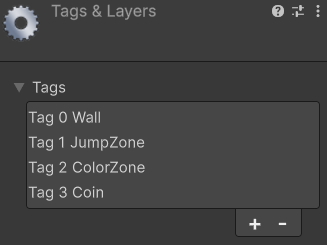
1. 벽에 충돌 시 벽의 색상이 변한다.
2. ColorZone 진입 시 공의 색상이 변하고, 나갈 시 원래대로 돌아온다.
3. JumpZone 진입 시 공이 순간적으로 높게 점프한다.
using UnityEngine;

public class PlayerController : MonoBehaviour
{
    private Rigidbody rb; //오브젝트 물리연산 담당 컴포넌트
    private Renderer playerRenderer; //오브젝트를 화면에 그려주는 컴포넌트

    private float horizontal;
    private float vertical;
    private float moveforce = 10.0f;
    void Start()
    {
        //컴포넌트 들고오기
        rb = GetComponent<Rigidbody>();
        playerRenderer = GetComponent<Renderer>();
    }

    void Update()
    {
        horizontal = Input.GetAxisRaw("Horizontal");
        vertical = Input.GetAxisRaw("Vertical");
    }
    private void FixedUpdate()
    {
    	//Addforce 방식
        Vector3 dir = new Vector3(horizontal, 0.0f, vertical);
        rb.AddForce(dir * moveforce);
    }
    private void OnCollisionEnter(Collision collision)
    {
        //Collision 안에는 충돌 정보가 들었다(Trigger보다 복잡한 구조)
        //상대 오브젝트에 접근하려면 gameObject를 한단계 타고 들어가야 한다.
        if(collision.gameObject.CompareTag("Wall")) //Tag가 Wall인 오브젝트와 충돌 시
        {
            //대상체의 컴포넌트를 그리는 Renderer의 material의 색상를 빨간색으로 변경
            collision.gameObject.GetComponent<Renderer>().material.color = Color.red;
            //TryGetComponent는 가져오는 컴포넌트의 존재 확인. 있으면 가져오고 없으면 null
            //때문에 GetComponent보다 좀 더 안전하다
            if (collision.gameObject.TryGetComponent<Renderer>(out Renderer renderer))
            {
                renderer.material.color = Color.red;
            }
        }
    }
    private void OnTriggerEnter(Collider other)
    {
        //Trigger는 충돌 정보가 없기에 Collider로 바로 접근
        if(other.CompareTag("ColorZone"))
        {
            //playerRenderer의 색상을 빨간색으로 변경
            playerRenderer.material.color = Color.red;
        }
        if(other.CompareTag("JumpZone"))
        {
            //윗 방향으로 순간적인 힘을 주기 위해 ForceMode 사용
            rb.AddForce(Vector3.up * 10.0f, ForceMode.Impulse);
        }
    }
    private void OnTriggerExit(Collider other)
    {
        if(other.CompareTag("ColorZone"))
        {
            //Renderer가 사용하는 색상 재질을 화이트로 변경
            playerRenderer.material.color = Color.white;
        }
    }
}
[함께 보면 좋은 내용]
[ GetComponent<>(); ]
현재 게임 오브젝트에 붙어있는 RigidBody 컴포넌트를 변수에 저장한다.
Start(), Awake()에서만 사용한다. (Update 계열에서 사용하면 안된다. 캐싱해야 한다.)
변수명 = GetComponent<Rigidbody>();
[터널링 Tunneling]
물체가 너무 빠르게 이동해, 프레임과 프레임 사이 물리적 충돌을 감지하지 못하고 벽을 뚫고 지나가는 물리 버그 현상.
[Time.fixedDeltaTime]
DeltaTime의 물리 버전(FixedUpdate)
FPS가 달라도 같은 값을 이동하도록 프레임을 보정한다. (1 * (1 / 프레임) = 프레임당 시간 보정)
[Render]
오브젝트를 화면에 그려주는 컴포넌트.
특정 오브젝트의 material의 색상을 변경하는 등의 기능이 있다.
[ForceMode 4가지]
Impulse : 순간적인 힘을 주는 방식
Force : (디폴트)미는 힘
Acceleration : 가속도
VelocityChange : 속도 변화를 즉시 지정
'개발일지 > Unity' 카테고리의 다른 글
| [Unity] Find, Coroutine (0) | 2026.05.28 |
|---|---|
| [Unity]Ray복습, UI, OverLap, Check (0) | 2026.05.27 |
| [Unity] Prefabs, RayCast (0) | 2026.05.26 |
| [Unity]이동, 회전 (0) | 2026.05.26 |
| [Unity]컴포넌트, 라이프 사이클 (0) | 2026.05.20 |